Walking
Awra lets you log your daily walking activity either in minutes or in steps — whichever matches your tracking habit. The app converts between them automatically using a standard conversion rate of 110 steps per minute.
Opening the walking log
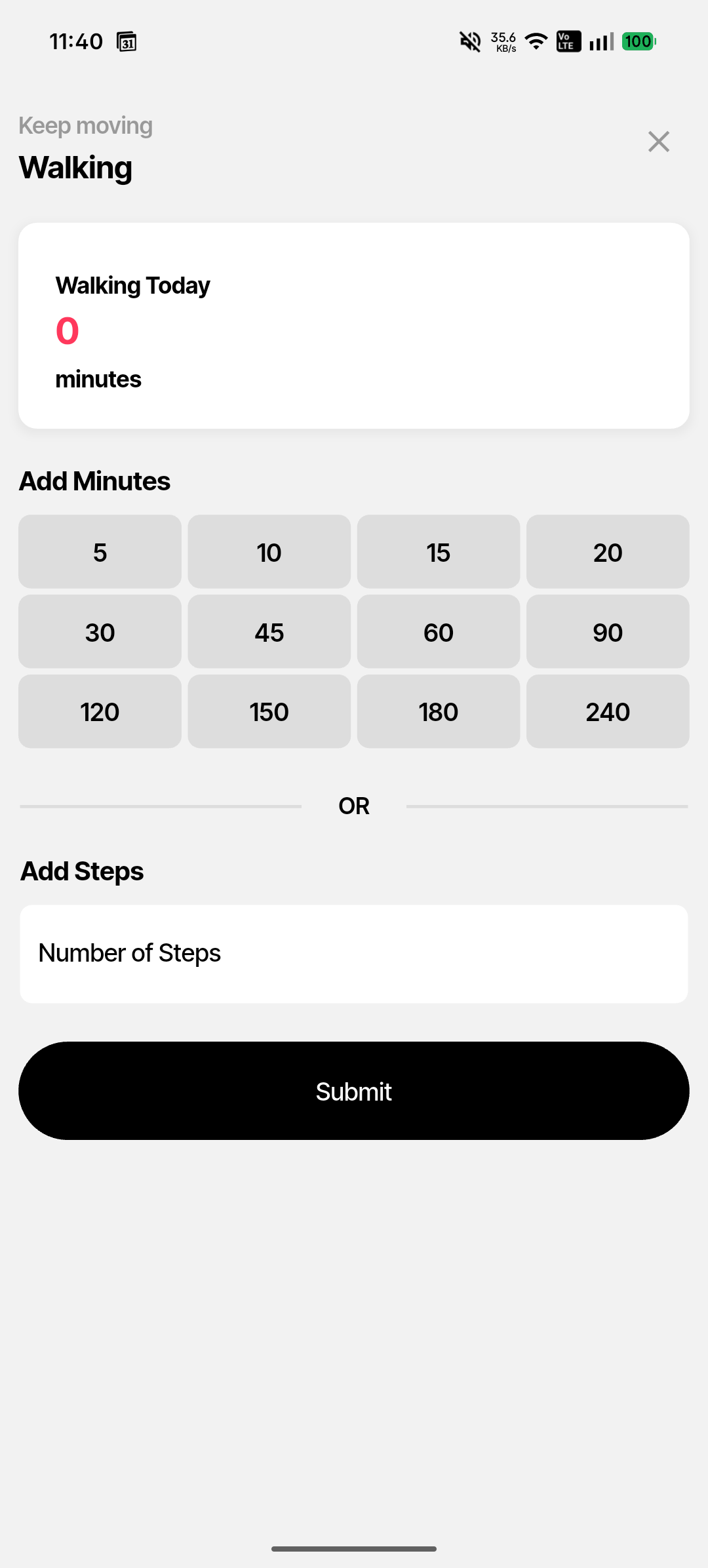
Tap the + (centre Add button) in the bottom navigation bar, then select Walking from the log options. The screen opens with the heading "Walking" and the context label "Keep moving."
Logging by minutes
The top section shows your current walking total for today (e.g. "Walking Today: 0 minutes") followed by a grid of quick-add minute values. Tap any block to add that many minutes to your total:
Available minute increments
5 · 10 · 15 · 20 · 30 · 45 · 60 · 90 · 120 · 150 · 180 · 240
Tap the value that matches how long you walked. Each submission logs a single walking entry for that amount.
Logging by steps
Below the minutes grid there's a text field labelled Add Steps. If you know your step count (from a phone pedometer or fitness tracker), enter it here instead. Awra converts your steps to minutes at 110 steps per minute and adds them to your activity total.
Submitting your log
Tap the Submit button at the bottom to save your walking entry. The Home screen and Stats will update to reflect the new activity data.
Where walking appears
Walking minutes are included in your Active Minutes count on the Home screen summary tiles. They also contribute to your Calories Out calculation in the Energy Metrics card. You can see weekly and monthly walking trends in Stats → Activity Trends.