Habits
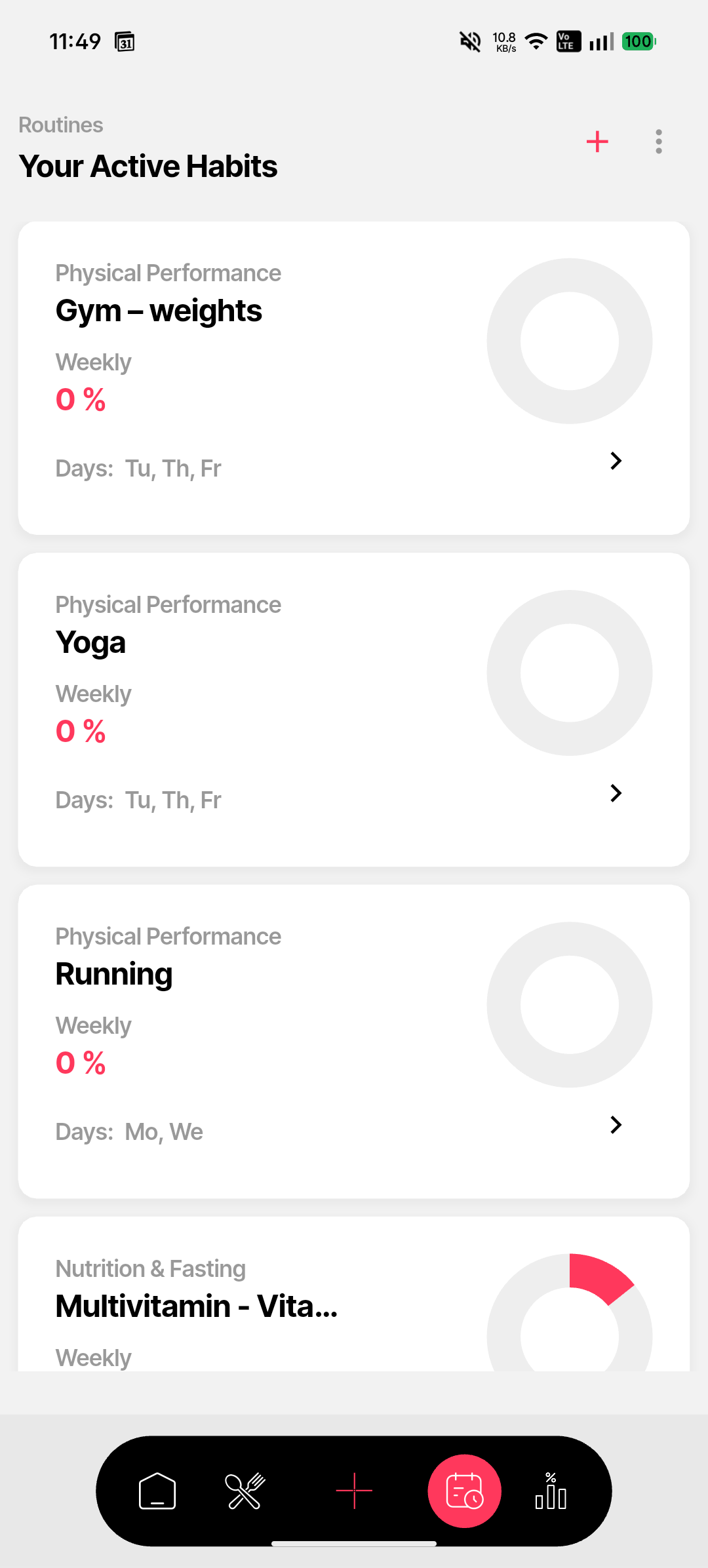
The Habits screen — labelled "Your Active Habits" in the app — is your central view for all habits and routines you're tracking. Each habit shows its category, schedule, weekly completion percentage, and a circular ring that fills red as you stay consistent.
Opening the Habits screen
Tap the calendar icon (4th tab, labelled Log) in the bottom navigation bar. The Habits list is the main view on this tab, showing all active habits under the heading "Your Active Habits."
Reading a habit card
Each card shows:
- 1 Category label — e.g. "Physical Performance" or "Nutrition & Fasting" — shown in small grey uppercase text above the habit name.
- 2 Habit name (bold) and the days it's scheduled (e.g. Mo/We/Fr or daily).
- 3 Weekly completion % — how many of this week's scheduled occurrences you've completed.
- 4 Circular ring (right side) — a red donut ring that fills based on completion. A full ring means 100% this week.
- 5 Habit Details button — opens the detail view for that habit, including its 7-day and 6-month adherence history.
Habit categories
Awra organises habits into categories based on how you set them up. The available categories are:
- ▸ Physical Performance — gym sessions, running, yoga, and other structured exercise habits.
- ▸ Supplements — vitamins, minerals, and other daily supplement habits.
- ▸ Mind & Focus — meditation, journaling, reading, and other mental wellness habits.
- ▸ Rest & Recovery — recovery routines, stretching, and rest-focused habits.
- ▸ Biometrics & Vitals — tracking body weight, blood pressure, heart rate, and similar daily measurements.
- ▸ Nutrition & Fasting — dietary habits like intermittent fasting and nutrition-focused routines.
Adding a new habit
Tap the + icon in the top-right corner of the Habits screen. This opens the habit creation flow. See the dedicated guides for creating an activity habit or a supplement habit.
Tip: Habits you mark done on the Home screen (via the "Due Today" card) are reflected immediately on the Habits screen. Both views stay in sync.