Sleep recording
Awra's sleep log captures three things: how you felt about the night, when you fell asleep, and how long you slept. All three feed into your Awra Score and are used by the AI when generating your daily health narrative.
Opening the sleep log
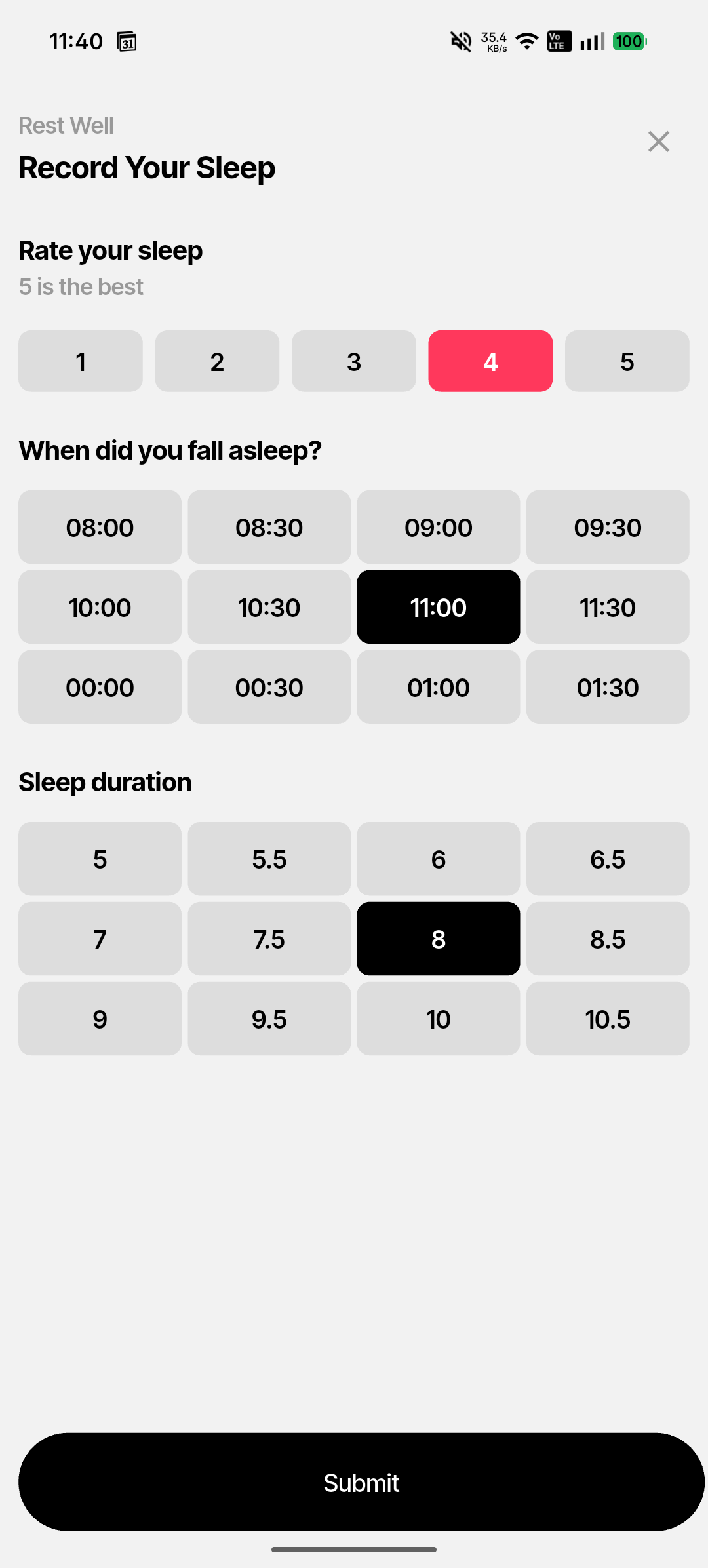
Tap the + (centre Add button) in the bottom navigation bar, then select Sleep from the log options. The screen opens with the context label "Rest Well" and the heading "Record Your Sleep."
Step 1 — Rate your sleep quality
At the top of the screen, tap a number from 1 to 5 to rate how well you slept. 5 is the best. This is a subjective self-assessment — it reflects how rested you felt, not just duration.
Quality scale
1 — Very poor · 2 — Poor · 3 — Fair · 4 — Good · 5 — Excellent
Step 2 — Log your bedtime
The bedtime grid shows time slots in 30-minute increments from 08:00 PM to 01:30 AM. Tap the block that most closely matches when you fell asleep last night. The selected block turns black.
Step 3 — Log your sleep duration
The duration grid shows options in 30-minute increments from 5 to 10.5 hours. Tap the block that matches how long you actually slept (not how long you were in bed). The selected block turns black.
Submitting your log
Tap Submit to save your sleep entry. The Hours Slept tile on the Home screen summary will update immediately.
Where sleep data appears
Your sleep entries contribute to the Awra Score sleep dimension. You can see weekly and monthly sleep trends in Stats → Sleep Trends, including your average sleep goal achievement and consistency rate.